
This article will cover the following:
- This article will cover:
- What Are Shopify Customer Events?
- How Do I Use Customer Events With CAKE Tracking?
- How Do I Create Customer Events In Shopify?
This article will cover the following:
This article will cover:
This article will cover:
What Are Shopify Customer Events?
Shopify Customer Events allow store owners to track and manage customer interactions and activities within their online store. CAKE users can take advantage of this feature to know when a consumer arrives on the store landing page(s) as well as when that consumer make a purchase and certain details about that purchase.
If you require advanced integration options such as: tracking and reporting on order level details (product sku, quantities, shipping, tax, discounts, etc.), voucher code attribution, ecommerce payout rules, or automatic imports of the Shopify product feed, reach out to your dedicated account manager or support@getcake.com to learn more about enabling CAKE's Ecommerce Module.
How Do I Use Customer Events With CAKE Tracking?
CAKE recommends setting up 2 customer events in Shopify to integrate tracking. The first customer event you create will be used to deploy CAKE's Dynamic Click Pixel across every landing page of the Shopify store. The second customer event will be used to deploy our JavaScript SDK conversion pixel on the checkout page. This configuration allows customers to track under best practices (cookieless tracking) while simultaneously gives them flexibility to drive traffic through standard tracking or Direct Links.
How Do I Create Customer Events In Shopify?
To create a Customer Events in Shopify, follow these steps:
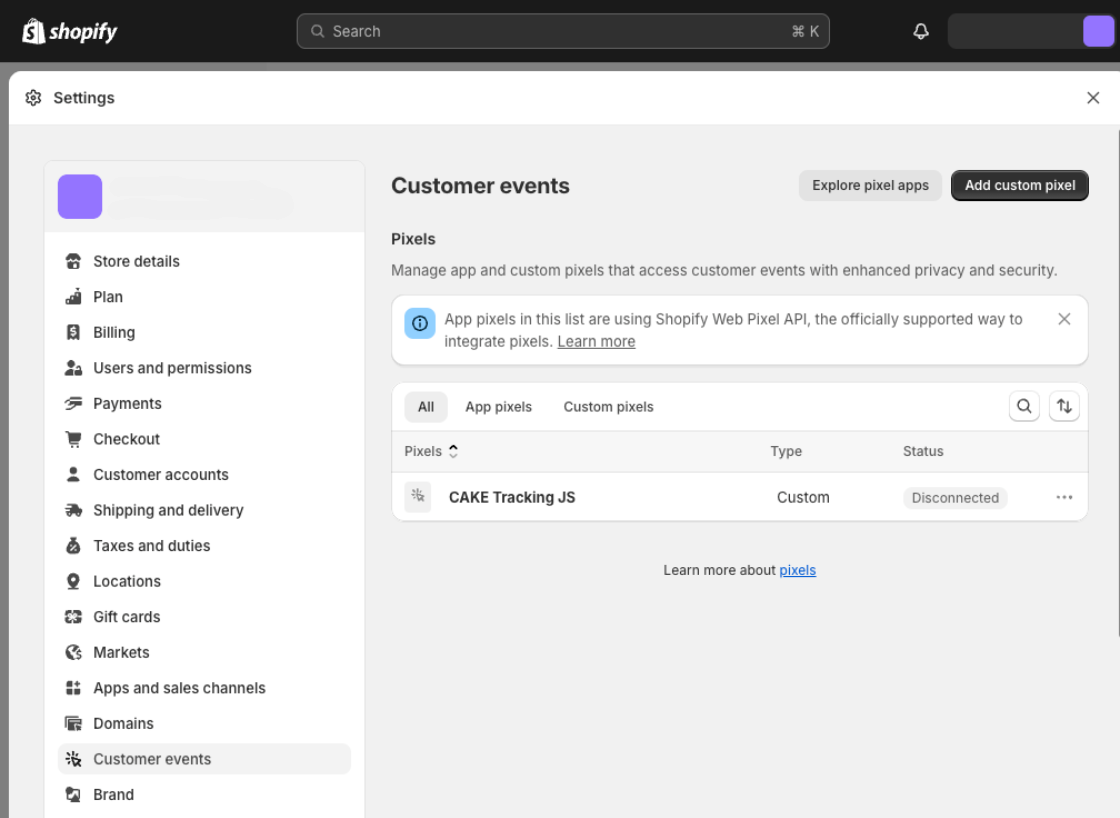
- Click on Settings in the Shopify Admin panel (bottom left corner)
- Click on Customer Events in the Settings menu
- Click on Add custom pixel (top right)
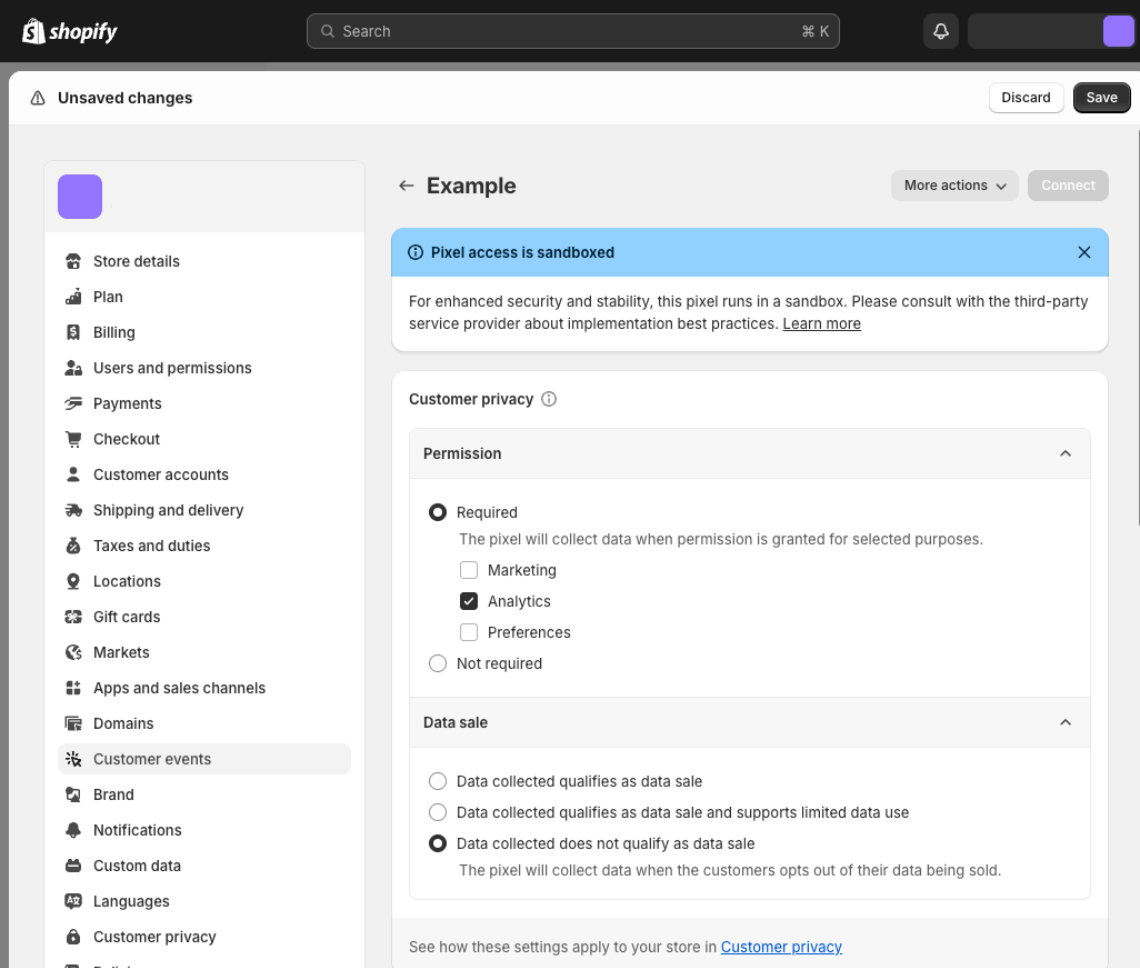
- Provide a Pixel Name and click Add pixel button. Example: "CAKE Dynamic Click Pixel"
- Navigate to the Code box and paste the Dynamic Click Pixel code below
- Update the code with your cookie domain where it says ENTER COOKIE DOMAIN HERE
- Update the code with (dot) website domain where it says ENTER .WEBSITE DOMAIN HERE
- Click Save at the top of the page, then Connect under the code box to deploy the code to the store
- Repeat Steps 1-
 4 then paste the JavaScript SDK code below.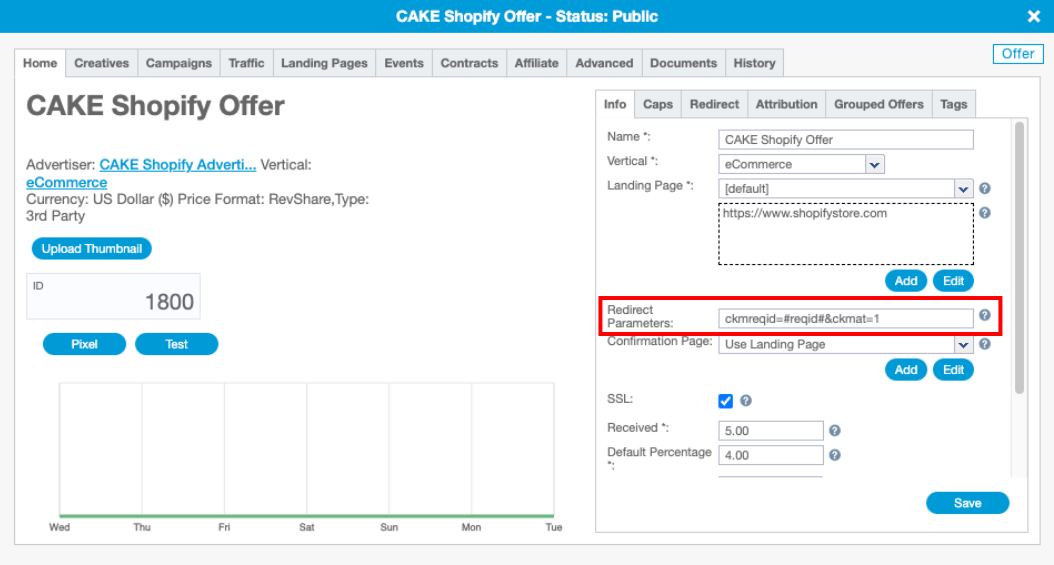
- Update the code with your cookie domain, offer ID and event ID where shown
- Click Save at the top of the page, then
If you have any questions, please reach out to your dedicated CAKE Client Success Manager/Account Manager or contact the CAKE Support Team at support@getCAKE.com.
