
This article will cover the following:
- What is Dayparting?
- Getting There: Finding Dayparting in CAKE
- Creating Your First Dayparting Schedule
This article will cover the following:
In this article:
- What is Dayparting?
- Getting There: Finding Dayparting in CAKE
- Creating Your First Dayparting Schedule
- Step 1: Choose How You Want to Add a Schedule
- Step 2: Choose Who This Schedule Applies To
- Step 3: Set Your Days, Times, and Payout
- Step 4: Save Your Schedule
- Making Changes to an Existing Schedule
What is Dayparting?
Dayparting is a feature in CAKE that lets you automatically adjust how much you pay affiliates based on the day of the week or time of day — without having to manually update anything.
For example, let's say your call center is only open Monday through Friday from 9 am to 5 pm. You might want to pay affiliates a higher rate during the hours when your team is available to handle leads, and a lower rate (or none at all) outside those hours. Dayparting handles that for you automatically.
Once you set up a schedule, CAKE will apply the payout you've defined at exactly the right time — and switch back when the window ends.
Getting There: Finding Dayparting in CAKE
Before you can create a schedule, you need to navigate to the right place in CAKE. Here's how:
- Look at the main navigation menu at the top of your screen and click on Affiliates.
- In the menu that appears below it, click on Dayparting.
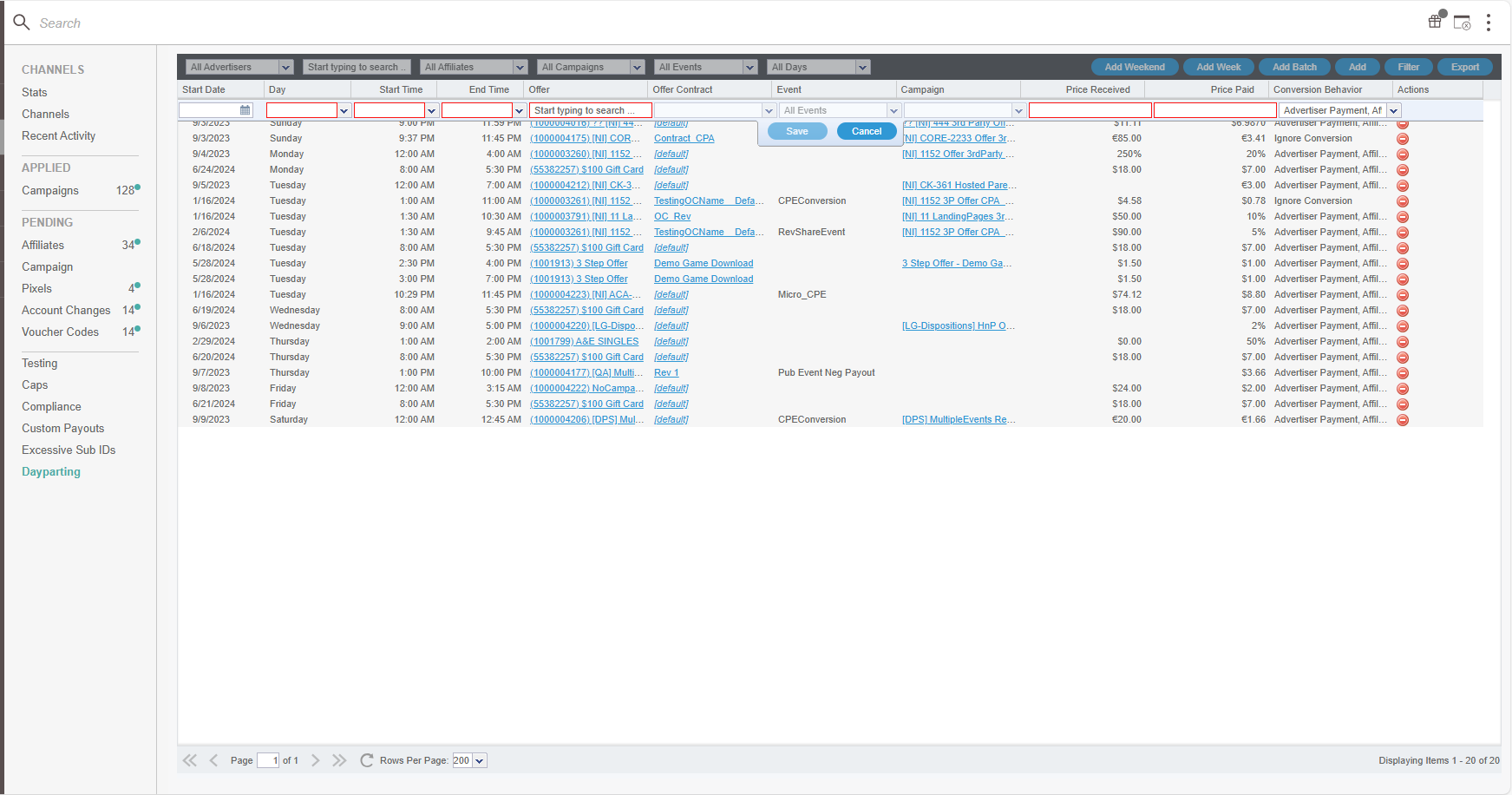
You'll land on the Dayparting grid — a table that lists all of your existing dayparting schedules. If this is your first time here, it will be empty. That's perfectly normal.
Creating Your First Dayparting Schedule
To add a new schedule, you'll use a setup wizard — a short series of steps that walks you through the process one screen at a time. Here’s how to complete each step.
Step 1: Choose How You Want to Add a Schedule
At the top of the Dayparting grid, you'll see several buttons. Each one opens the same setup wizard, but with some days already selected for you as a shortcut:
- Add: Opens a blank schedule with nothing pre‑selected. Use this if you want full control over which days are included.
- Add Weekday: Opens the wizard with Monday through Friday already checked. Great if your schedule follows a standard work week.
- Add Weekend: Opens the wizard with Saturday and Sunday already checked.
- Add Batch: Lets you create several schedules at once. This is a more advanced option — if you're just getting started, stick with one of the three options above.


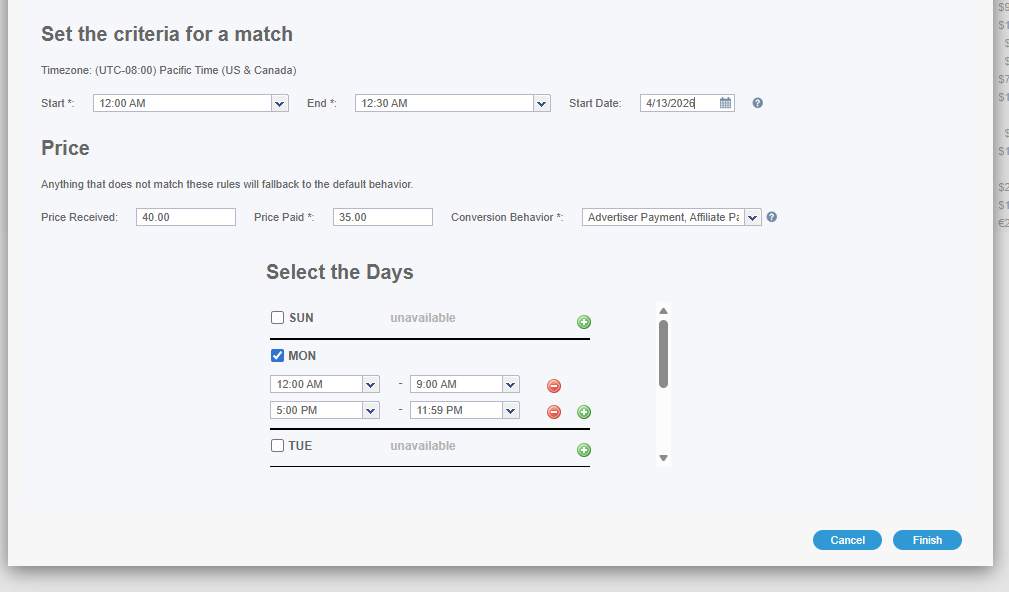


Click whichever button makes the most sense for your situation to get started.
If you have any questions, please reach out to your dedicated CAKE Client Success Manager/Account Manager or contact the CAKE Support Team at support@getCAKE.com.